


 Documentation
 Changelog
 Tutorials
 FAQ
FAQ

Markings
Markings are paintings over other city parts and should be painted on flat surfaces. Markings mostly work on roads and sidewalks, where they can add details and informations, such as parking slot paintings, directions, indications, zebras, etc...
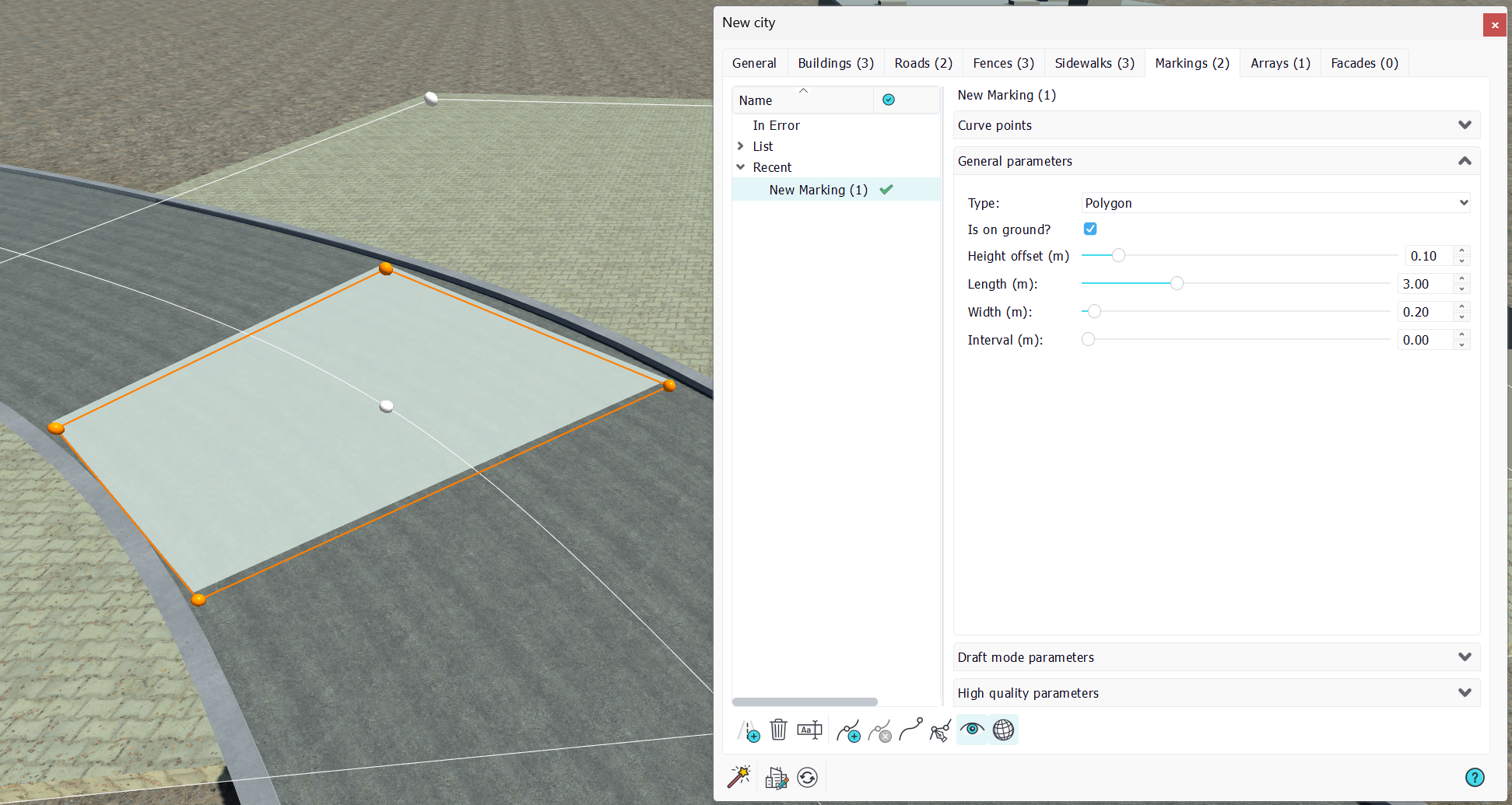
Markings are using curves, like other city parts.
General parameters
One tricky point in markings creation is to adjust the marking to the surface it covers. For instance a marking set over a road can be set like in the illustration above with the "Is on ground" option checked and a "height offset" set to 10 cm. This will match the way roads are defined. To have a marking on sidewalks, the height offset should match the thickness of the sidewalk. By default, the sidewalk thickness is 20 cms.
A marking parameters are:
- Type: Define the marking type, a polyline or a polygon. A polyline will draw a surface defined by the dimensional parameters described below.
- Is on ground: As stated earlier, is used to ensure that the marking surface creation will match the creation of its support. To paint marking on road bridges that are shifted off the ground this option should be turned off and the height offset set to 0.0 m.
- Height offset: Vertical offset applied to the marking surface generated.
- Length/Width/Interval: These are dimensional parameters applied to the marking when its a polyline.
Draft mode parameters
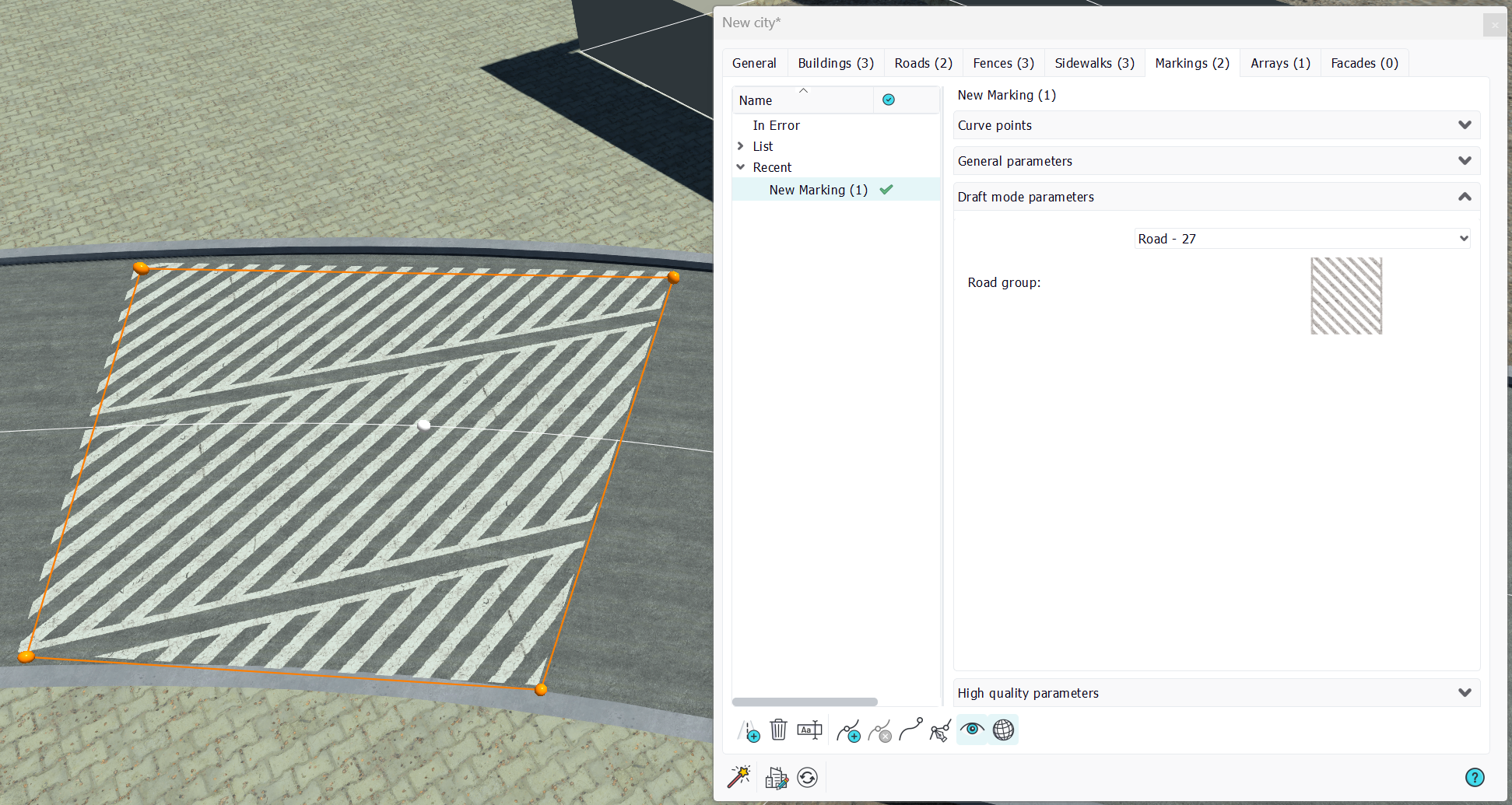
Just pickup the appropriate facade. As for sidewalks, the orientation of the facade texture image is defined by the segment 0-1 of the marking, so the first two points of the marking shape (in the case of a polygon. In the case of a polyline, the texture U mapping axis is perpendicular to the polyline, while the V axis follows the polyline).
High quality parameters
Markings don't accept geometry drops. They accept Materials drops instead. The material of a marking must have the "decal" option being set to have transparency properly handled.
 Arrays Arrays |
