

 Documentation
 Changelog
 Tutorials
 FAQ
FAQ
Animating rigged geometries
Adding the animation track
The timeline allows to control the animations of rigged geometries. In the Animation tab of the geometry view, external animation files can be loaded if the geometry is rigged, i.e. have a skeleton. For more informations about the geometry panel, see Animating a geometry.
When one or multiple animation tracks have been loaded with the geometry, they can be used as animation sequences in the timeline.
- Drag and drop a geometry instance from the Scenes tree to the timeline. It is important to drop an instance from the scene, not the geometry document itself!
- Select the desired animation track from the drop panel.
- The geometry instance track appears with a sequence of the selected animation.
- The sequence can be edited in the timeline.
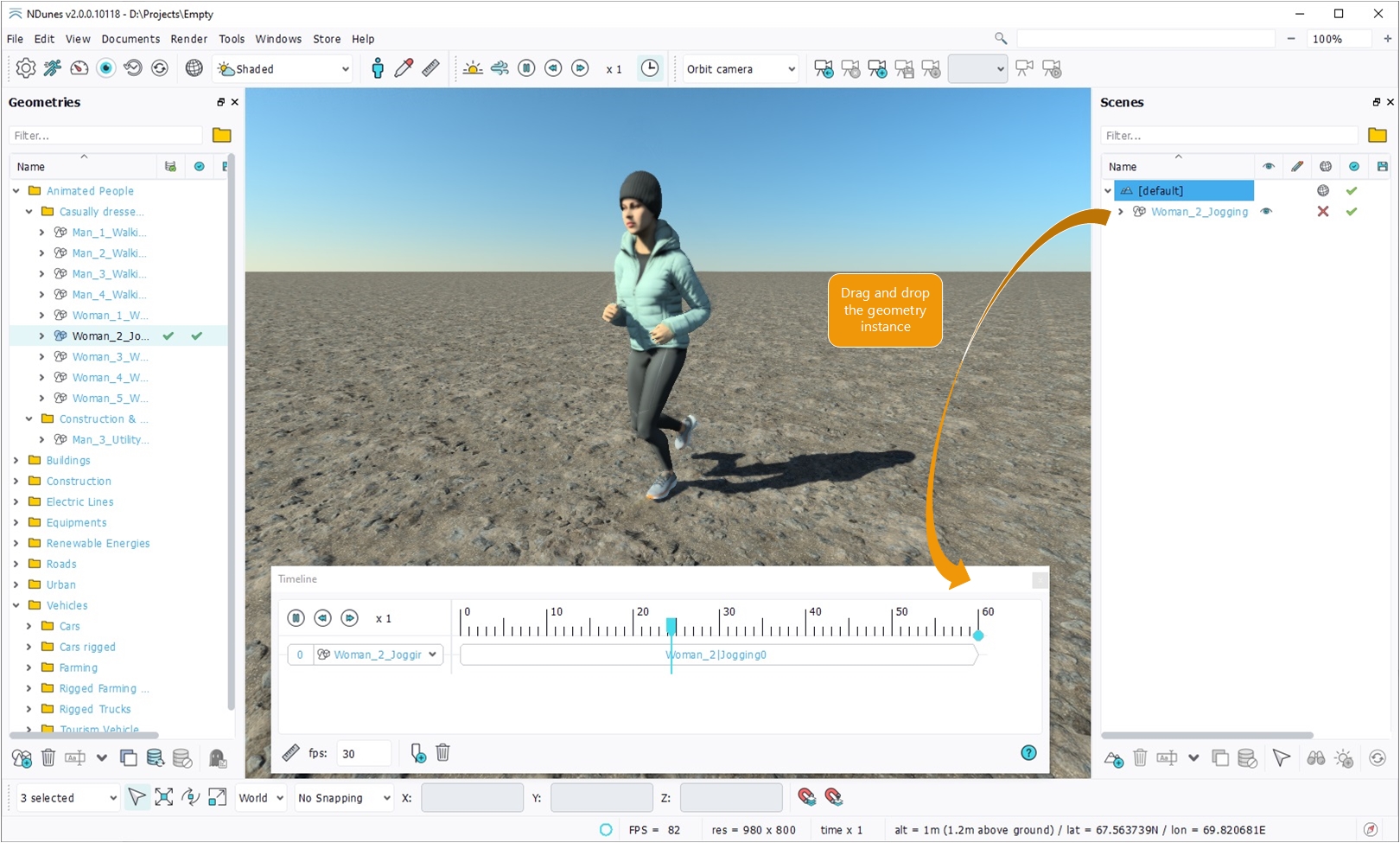
Adding a geometry track
Note:
By default, when adding a geometry to the scene, if it has animations, then the track is automatically added to the timeline with a random start offset (to avoid synchronisation between the same animations).
Transitionning between animations
The timeline allows to blend between two animation sequences to ensure seamless transitions. To do so, just overlap the end of the first sequence with the beginning of the second. The length of the overlap determines the duration of the transition. For character animations, a transition time between 200 and 500ms is generally recommanded.
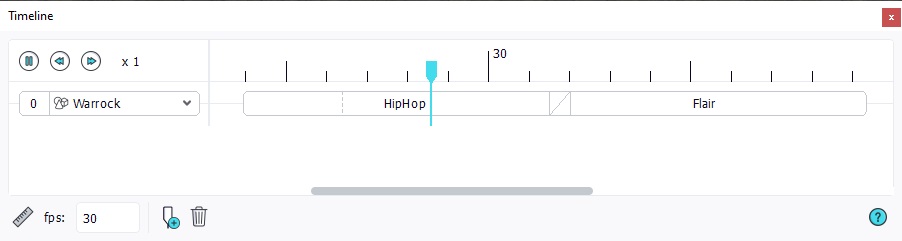
Smooth transition between two sequences
 Animating objects along a curve path Animating objects along a curve path | Animating the sun |
