

 Documentation
 Changelog
 Tutorials
 FAQ
FAQ
Animation
The animation tool provides a flexible, timeline-based workspace for creating, organizing, and controlling animated content. At its core, the system is built around animation tracks and sequences. Animated objects can be added, arranged, and modified directly within the timeline. Whether you are animating simple camera tracks or building complex sequences of animated geometries, the tool offers a structured environment that keeps time-related workflows intuitive and efficient.
The timeline
The timeline acts as the central hub for all animation activity. Each animated object can be dropped into the timeline, where it automatically creates one or more tracks representing its animatable properties. These tracks allow you to define how an object behaves over time: curve following, visibility toggles, or any other supported attribute. By manipulating sequences properties on these tracks, you can craft smooth, precise animations without needing to write code.
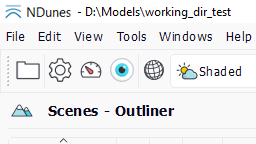
The timeline panel can be opened with a button in the simulation toolbar or via the View menu.
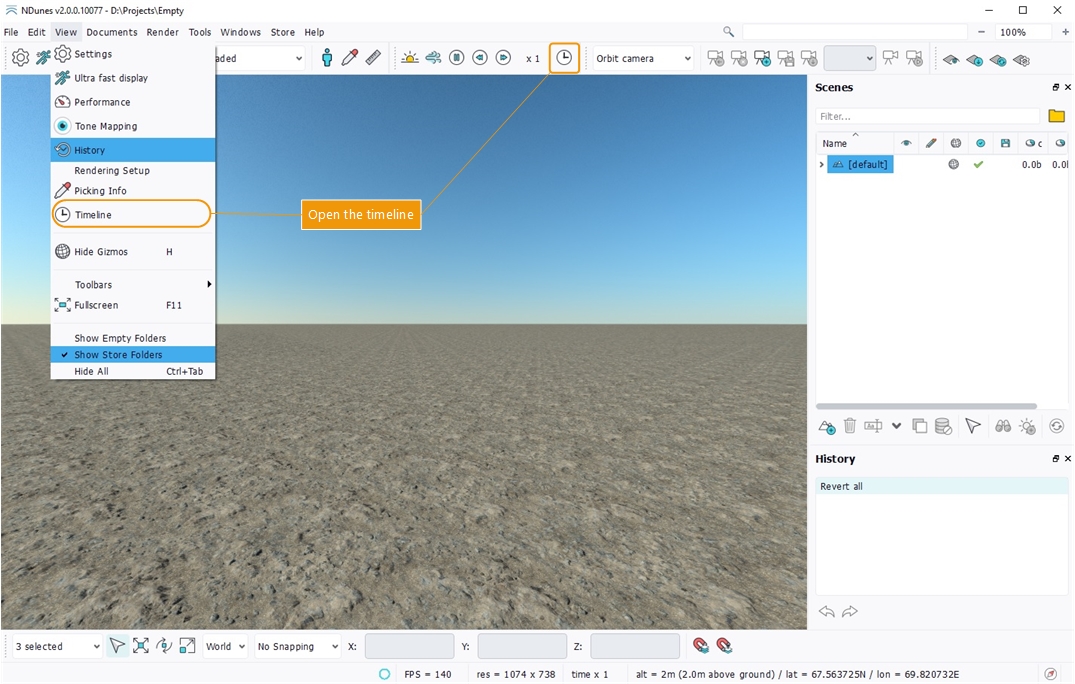
Opening the timeline window
The tool displays the time gradation on top and a list of tracks rows where names and index appears in the left column. Each track represents one specific object and manages a single animation type for that object. For instance a camera animated along curve paths or a sun trajectory.
You can switch the timeline's gradation units from seconds to frames using the "ruler" button in the toolbar. When frames are enabled, you can adjust the frames-per-second value directly next to the button.
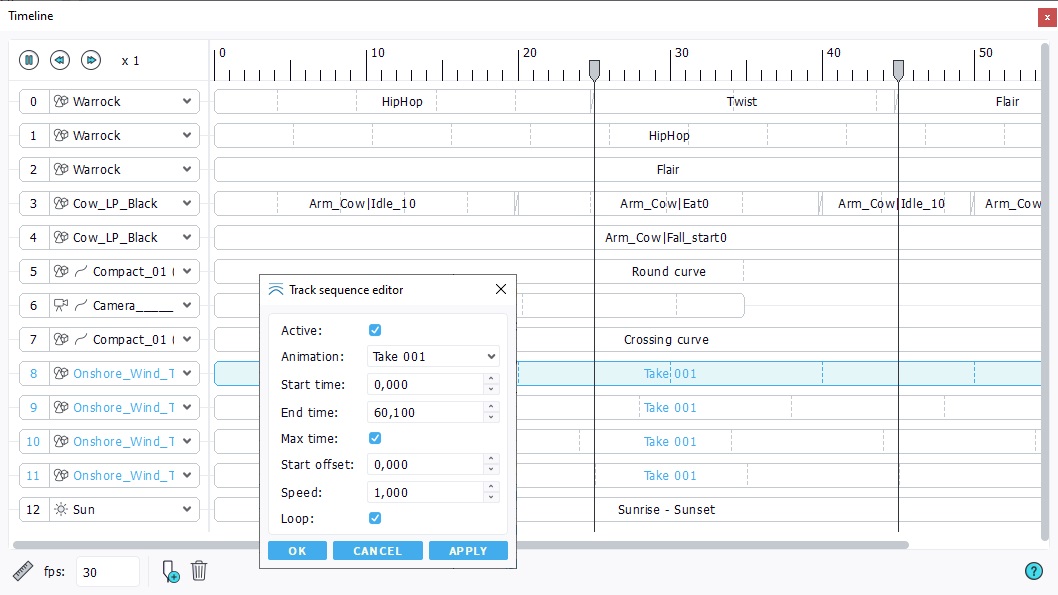
Timeline tracks and sequences
Each track is composed of one or more sequences that can be arranged in time. A sequence has several parameters available when double clicking on it:
- animation: the animation channel;
- starting time: the timestamp when the sequence begins;
- ending time: the timestamp when the sequence ends;
- max time: check if the sequence end time matches the global end time;
- starting offset: a time offset set to the animation played in the sequence;
- speed: play speed of the animation in the sequence;
- loop: does the sequence animation loop or stop at end.
Sequences and tracks can be rearanged in the timeline by drag and dropping them or their bounds. Markers can be added to fix a given timestamp and allow sequences to be snapped on it.
Some animation tracks, such as rigged geometries, can include sequences that overlap and blend across their channels to create smooth transitions.
Animated objects
Multiple objects can be dropped in the timeline, automatically creating individual animation tracks for each of them.
- Camera translation and rotation along a curve path: Animating a camera along the curve;
- Geometry instance translation and rotation along a curve: Animating a geometry instance along the curve;
- Rigged geometry skeletal animation: Animating a rigged geometry;
- Sun trajectory animation: Animating the sun;
- Activation triggers for geometries, plants or scene groups: Animating objects activation.
- Running geometry scripts.
Animating objects along a curve path |
