

 Documentation
 Changelog
 Tutorials
 FAQ
FAQ
Animating objects along a curve path
Creating a curve path
A camera or a geometry instance can be animated to follow a curve path. In the scene panel, available by double clicking the scene item in the "Scenes" tree, we can find a tab named Curves. It stores all the animation curves of the scene.
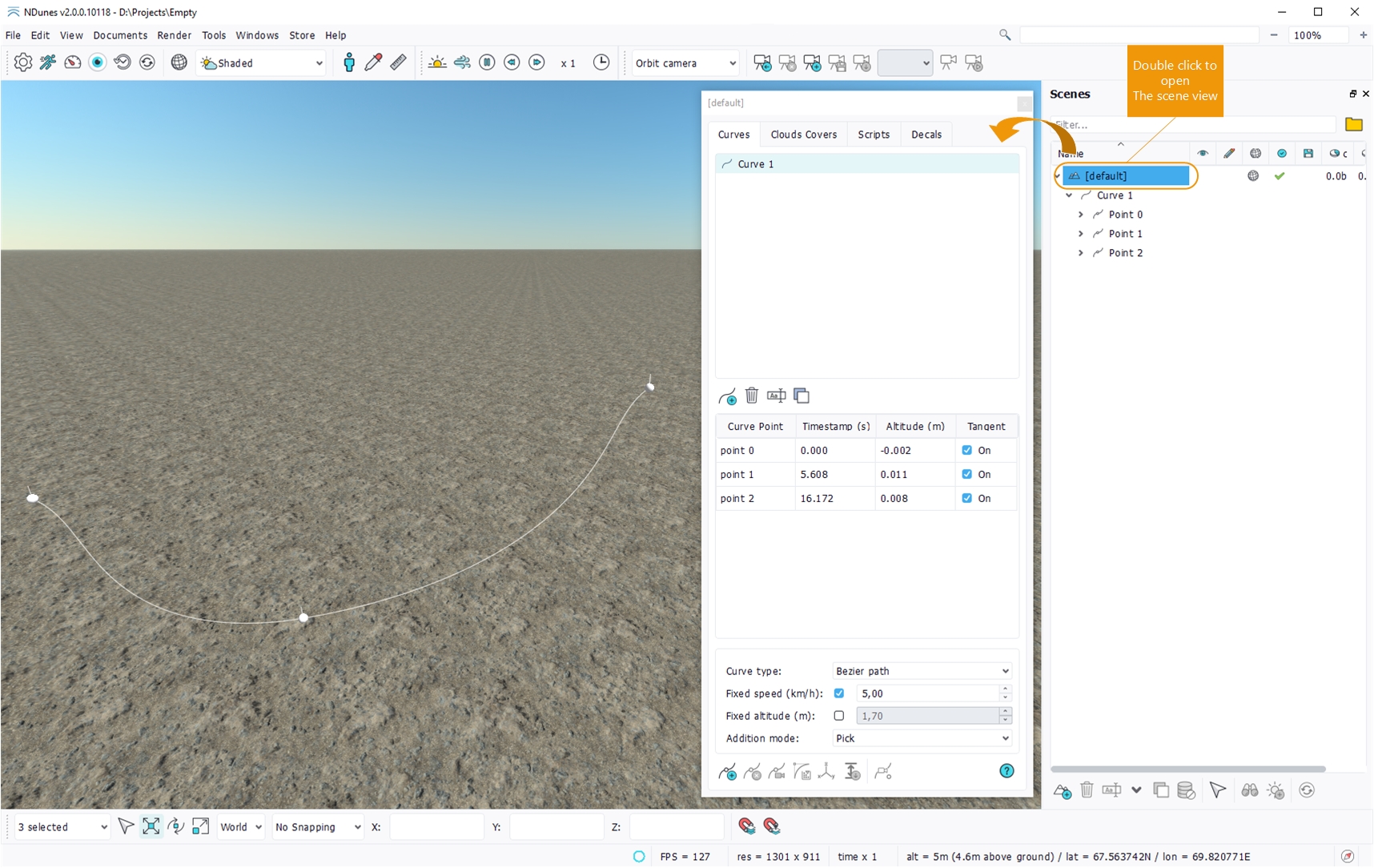
Opening the scene curves panel
The first table in the panel lists all the animation curve paths of the scene. The associated toolbar contains the generic buttons for adding, removing, renaming or duplicating a curve.
Note:
Any curve (building, decals, etc.) can be dropped in the table to create a copy for animation.
When selecting a curve in the upper table, the second table lists their points. A curve point can be added with the corresponding "+" button in the toolbar or via the contextual menu.
Note:
If a point is selected in the table, the new point is added just after.
The curve points are removable by selecting them and clicking the red "x" button or pressing the Del key.
Three addition modes are available via a combo box when creating curve points:
- Curve: the new curve point is created in the continuity of the curve. It is mostly useful to add intermediate points between existing ones.
- View: the new curve point is created at the observer/viewport position and orientation. It is used for camera curves.
- Pick: the new curve point is created by picking in the viewport.
If the fixed altitude is enabled, any new curve point is placed at the specified altitude above the ground. The altitude can also be set manually from its column in the table.
The points table has a column named Tangent. When a point tangent is checked, its orientation is overriden by following the curve trajectory and keeping the up direction.
You can see that the path and points are visible in the main view. The points can be moved using the manipulators (see Using the selection toolbar) or can be updated with the Set From Observer button in the toolbar which moves the selected point at the position and orientation of the viewport.
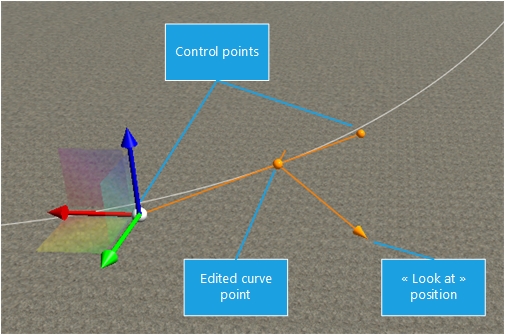
Viewing and modifying the curve in the viewport
The curves can have straight segments or be Bezier paths, looping or not.
If the curve is a Bezier path, each point have two surrounding control points defining the aspect of the curve. They can be picked and moved with the translation manipulator. The selected curve point can be rotated using the rotation manipulator or by moving the "lookat" position resulting in a different camera orientation.
Note:
By default, the two control points move together. However, they can be translated independently by pressing the ALT key while moving the manipulator.
The control points can be reset to a default position by clicking the Smooth button in the toolbar.
Sometimes, after editing/rotating a point, its top vector may not point to the up direction anymore resulting in the rendered view showing a tilted horizon. Re-setting this top vector manually is nearly impossible. The Set Top button of the points toolbar allows to reset the top vector of the selected points automatically.
When changing the ground of the scene, the altitude values of the points may not represent their real position in the scene anymore. The Apply Altitude button translates all the points to their altitude value.
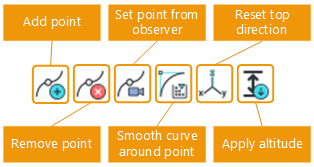
The curve toolbar
Each point of the curve is associated to a timestamp (in seconds) visible and editable in the second column of the table. The timestamp controls when the animated object will reach the point during the animation, starting from the first point.
When enabling and setting the Fixed speed option, the timestamps of all the points are calculated automatically to reach the camera speed specified in the property. In this case the timestamps in the table are locked.
Animating a camera along the curve
The animation curve paths can be used to animate a camera to render a movie:
- Create a camera in the scene (see Creating and managing cameras).
- Drag and drop the camera from the scene tree to the timeline.
- A new track appears in the timeline for the camera with a default curve sequence.
- Double click on the curve sequence to edit it.

Creating a camera animation track
You can then export the camera animation shots to be used outside of NDunes as frames and video. See the Rendering a camera animation topic.
Animating a geometry instance along the curve
Like with cameras, to animate a geometry instance position and orientation along a curve, simply drag and drop a geometry instance from the scene tree into the timeline. A small panel should appear asking which type of animation to create for the geometry. Selecting the right curve in the combobox will create the curve animation track.

The geometry instance drop panel
Note:
Make sure to drag and drop a geometry instance from the scene tree, not a geometry document from the geometries tree. Only instances are used in the timeline.
 Animation Animation | Animating a rigged geometry |
